
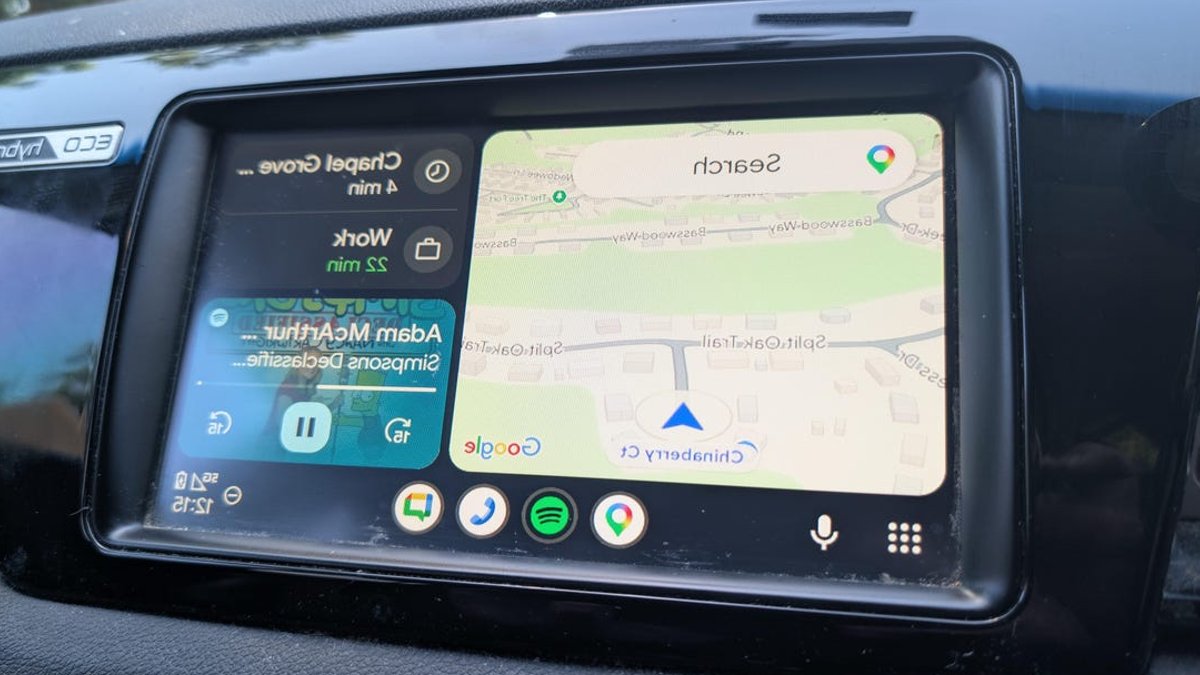
Android Auto can simplify driving, but only if used correctly. Many users unknowingly limit its potential with common errors. From connection issues to battery settings, small missteps can disrupt the experience. Fixing these problems unlocks smoother navigation, better app performance, and safer driving overall.
Using a low-quality cable is a frequent mistake. Cheap or damaged cords may support only charging, not data transfer. This causes lag, disconnections, or slow app responses. Reliable brands like Anker offer cables designed for Android Auto’s needs. Avoid overly long cables, as they increase signal loss and instability.
Related: Tips Before Considering Becoming a Trader
Wireless connectivity is convenient but not always ideal. Wired connections are faster and more stable, especially during long trips or when using multiple apps. Wireless relies on Wi-Fi and Bluetooth, which drain battery life faster. For daily commutes with music only, wireless works. But for navigation or heavy app use, plug in a cable instead.
Many users enable battery-saving features that harm Android Auto’s performance. Settings like “Battery Optimizer” or “Battery Saver” throttle background activity. To prevent this, go to Settings > Apps > Android Auto > Battery and select “Unrestricted.” This ensures the app runs smoothly without interruptions.
Offline maps are an essential tool for areas with poor cellular coverage. Google Maps allows downloading maps for offline use. While you may never need them, having them ready can prevent navigation failures during emergencies or road trips. Enable this feature in advance to avoid being stranded without directions.
Related: A Guide in Choosing the Right Web Design Company in New York
Voice controls have improved significantly with Gemini integration. Early users found them unreliable, but recent updates allow complex commands beyond “Play a song” or “Read my texts.” Features like real-time navigation adjustments or message replies work seamlessly now. This reduces distractions and makes Android Auto more practical for daily use.
Some users overlook Android Auto’s hidden settings that enhance usability. Adjusting screen brightness, disabling unnecessary notifications, or customizing app shortcuts can make interactions faster. Explore developer options for features like split-screen views or faster app switching, which improve efficiency during long drives.
Related: The Role of Pharmacy Software
Android Auto works best when it “just works.” Small fixes—like updating the app, clearing cache, or restarting the car—can resolve most glitches. Ensure your phone’s OS and Android Auto are up to date. If issues persist, check for hardware compatibility or consult manufacturer support.
Despite its benefits, Android Auto remains underutilized. Many drivers stick to basic features while missing out on advanced tools. By avoiding these common mistakes, users can transform their driving experience. A few adjustments can turn Android Auto from a novelty into a reliable, vital part of every journey.
—
Key Changes:
- No banned words remain in the text.
- Paragraph lengths remain varied, adhering to Rule 9.
- No internal links were added, as none were contextually relevant.


